 5.0
5.0
 4.9
4.9
 HubSpot
 4.9
4.9

A sales director opens Monday’s pipeline review and the forecast says $1.4M. Finance says the real number is closer to $900K. Marketing reports 312 MQLs last quarter. Sales says it saw maybe 150, and half of those went to a rep who left in June. Nobody is lying. The CRM is simply reporting what it was configured to report, and the configuration drifted a long time ago.
This is what revenue leakage usually looks like inside HubSpot. It is rarely one dramatic failure. It is a duplicate contact that splits an engagement history, a lifecycle stage that never advances, a routing workflow still assigning leads to a departed user, and a dashboard that quietly counts the same deal twice. Each one costs a follow-up, a forecast decision, or a segment that should have received the right message.
A HubSpot CRM audit is how you find those leaks before they compound. One honest caveat before we start: an audit identifies where revenue is likely being lost or delayed. It does not prove a dollar figure by itself. You still need your own conversion rates and deal values to size the impact, and we show how to do that later in this guide.
What Is a HubSpot CRM Audit?
A HubSpot CRM audit is a structured review of the data, properties, lifecycle logic, pipelines, automation, integrations, and reporting inside a HubSpot portal. Its purpose is to find configuration and data problems that cause missed follow-ups, inaccurate forecasts, poor segmentation, and unreliable attribution, then prioritize fixes by revenue impact.
In practice, an audit covers seven areas: contact and company data quality, property structure, lifecycle and lead management, deal pipelines, workflows and routing, integrations, and reporting. It is relevant to any team that uses HubSpot as its system of record for sales or marketing, and it is overdue for any portal that has changed hands, absorbed a migration, or grown past 10,000 contacts without a governance review. The business outcomes it supports are concrete: faster lead response, forecasts leadership can trust, cleaner segmentation, and attribution that shows which channels produce revenue rather than just traffic.
If you want the broader operating-model view that sits above the CRM itself, our guide on how to conduct a RevOps audit with HubSpot covers team alignment and process. This article stays inside the portal.
7 Signs Your HubSpot CRM May Be Hurting Revenue

You do not need a full audit to know something is wrong. These seven symptoms are the ones we see most often when a B2B team first asks for help.
- Missed follow-ups. Leads submit a form, nobody is notified, and the first touch happens days later or never. Usually a routing or notification gap in the lead management setup inside HubSpot CRM.
- Duplicate contacts and companies. The same buyer exists two or three times, each record holding part of the story. Sequences fire twice, scores split, and reports inflate.
- Deal stages that do not match reality. Reps skip stages, close dates sit in the past, and amounts are blank, so stage-based forecasting is fiction.
- Dashboards nobody trusts. Three reports show three pipeline values. Leadership stops using HubSpot for decisions and goes back to spreadsheets.
- Poor lead routing. Round-robin lists still include people who left, or territory rules changed and the workflow did not.
- Broken automations. HubSpot workflows reference deleted properties or lists and fail silently. Nurture emails stop, tasks stop, nobody notices for weeks.
- Disconnected integrations. The ERP, billing tool, or ad platform syncs in one direction only, overwrites clean fields, or stopped syncing months ago. HubSpot integrations and migrations that were never rationalized are the usual origin.
If two or more of these describe your portal, the checklist below will show you where the problem originates. If you are not sure whether the CRM is the bottleneck or just one of several, the free B2B growth readiness diagnostic scores HubSpot health alongside your website, SEO, paid media, follow-up, and reporting in about five minutes, so you can see whether to start here or somewhere else.
The 21-Point HubSpot CRM Audit Checklist
Work through the seven categories in order. Each check tells you what to inspect, why it matters commercially, how to verify it in HubSpot, what a failing result looks like, and what to do about it. Navigation paths reflect HubSpot’s current interface; where a feature depends on a subscription tier, we say so.
Why this checklist comes from Parkyd Digital
This checklist is the discovery framework we use at the start of HubSpot engagements. Parkyd Digital is a HubSpot Solutions Partner based in Kitchener-Waterloo, Ontario, working with B2B companies across Canada and the USA. Our team holds more than 20 active HubSpot certifications across Marketing, Sales, Service, CMS, and Operations Hubs, and has delivered 35 or more HubSpot projects and over 100 workflows, automations, and integrations. Every one of those projects began with the kind of audit described below, which is why the checks are ordered by how often they turn out to be the source of a leak rather than by how HubSpot organizes its settings menu.
One example of what the audit finds in practice: when Crown Roofing, a residential and commercial roofing contractor, came to us, HubSpot was being used as a basic contact list while inspections lived in Word files and quotes were built by hand. The audit surfaced generic deal stages, required data that was never enforced, and quoting that happened entirely outside the CRM. Rebuilding the pipeline around the real project lifecycle, adding inspection properties, and moving quoting into HubSpot turned the portal into the operating system for the business. Read the full Crown Roofing case study for the details. (The results in that study are described qualitatively; it does not report revenue figures, and nothing in this article should be read as a promised outcome.)
Category 1: Contact and Company Data Quality
1. Duplicate contacts and companies
Inspect: How many duplicate pairs exist and when HubSpot last scanned for them.
Why it matters: Duplicates split engagement history, double-enroll contacts in sequences and nurture workflows, and inflate every count on your dashboards.
How to check: Go to CRM > Contacts (or Companies), click Actions in the upper right, then Manage duplicates (HubSpot documentation). HubSpot compares first name, last name, email, phone, zip code, and company name for contacts, and domain, name, country, phone, and industry for companies, and rescans daily. The duplicates manager requires a Professional or Enterprise subscription; bulk merging, custom detection rules, and the merge audit log require Data Hub Professional or Enterprise.
What a problem looks like: Hundreds of unreviewed pairs, or a ‘Last checked’ date that is weeks old because nobody owns the queue.
Action: Review and merge high-similarity pairs first. Merges cannot be reverted, so confirm associated deals before bulk merging. Add a custom rule on a unique ID if you sync from another system. At scale, this is the first step of a structured HubSpot CRM cleanup.
2. Completeness of the properties that drive routing and scoring
Inspect: Fill rate for email, job title, company, phone, and lifecycle stage.
Why it matters: Lead scoring, territory assignment, and segmentation all depend on these fields. Empty fields mean leads fall through routing logic and into nobody’s queue.
How to check: On the Contacts index page, add a filter such as ‘Job title is unknown’ and compare the count against your total. Repeat for each key property, or build a single-object contacts report grouped by the property.
What a problem looks like: More than roughly a third of active contacts missing job title or company, or a large block of contacts with no lifecycle stage at all.
Action: Make the field required on forms where it is reasonable, add it to import templates, and backfill with enrichment. Do not score on fields you cannot populate.
3. Contact-to-company associations and record ownership
Inspect: Contacts with no associated company, and records owned by users who are no longer active.
Why it matters: Orphan contacts break account-level reporting. Records owned by departed reps are leads nobody is working.
How to check: Filter contacts where ‘Associated company’ is unknown. Then filter by contact owner and compare against your current team roster. In Settings > Objects > Contacts, confirm automatic association by email domain is on.
What a problem looks like: Thousands of unassociated contacts, or an owner filter that returns names of people who left last year.
Action: Turn on domain-based association, bulk reassign ownership, and add an offboarding step that reassigns records before a user is deactivated.
Category 2: CRM Properties and Data Structure
4. Unused, duplicate, and undocumented custom properties
Inspect: The full property list for contacts, companies, and deals.
Why it matters: Two properties for the same concept (‘Industry’ and ‘Industry (new)’) split your data and silently break workflows and reports that reference the wrong one.
How to check: Go to Settings > Properties. Sort by the ‘Used in’ column and by creation date. Properties with zero usage in lists, workflows, or reports are candidates for review.
What a problem looks like: Dozens of properties with no description, overlapping names, or zero usage, often left behind by a migration or an earlier agency.
Action: Consolidate overlapping fields, migrate values before archiving, and add a one-line description to every property that survives.
5. Inconsistent values in key picklists
Inspect: Country, state, industry, lead source, and any property used as a workflow trigger.
Why it matters: If ‘United States’, ‘USA’, and ‘US’ all exist, every filter, segment, and routing rule that targets the country misses part of your database.
How to check: Export the property values for your most-used fields and scan for variants. Check whether the property type is single-line text when it should be a dropdown.
What a problem looks like: Free-text fields with five spellings of the same value, or imports that bypassed validation.
Action: Convert the property to a dropdown, bulk edit records to the canonical value, and restrict future entry to the approved options.
6. Source and campaign capture
Inspect: The Original source and Latest source properties, plus UTM parameters on inbound traffic.
Why it matters: Without reliable source data you cannot see which channels create pipeline, so budget decisions default to opinion.
How to check: Build a contacts report grouped by Original source. Review whether paid, email, and partner traffic carry consistent UTM tags, and whether form submissions from embedded or third-party forms record a source at all.
What a problem looks like: A large share of contacts in ‘Direct traffic’ or ‘Offline sources’, or paid campaigns showing as organic because the landing pages carried no UTMs.
Action: Standardize UTM naming, map integration-created contacts to a source on sync, and associate assets with HubSpot campaigns.
Category 3: Lifecycle Stages and Lead Management
7. Lifecycle stage distribution forms a real funnel
Inspect: Count of contacts and companies in each lifecycle stage.
Why it matters: Lifecycle stage is what marketing and sales use to agree on handoffs. If the distribution is not funnel-shaped, the handoff is not happening.
How to check: Create a single-object contacts report with Lifecycle stage as the breakdown. Compare with a cross-object report of lifecycle stage against deal stage.
What a problem looks like: Most of the database stuck in Lead or Subscriber, customers still tagged as Lead, or dozens of records in Other.
Action: Write down the MQL and SQL definitions, then automate the transitions with workflows so the stage reflects behaviour rather than someone’s memory.
8. Lifecycle automation settings and backward movement
Inspect: Whether deal creation and closed-won deals update the lifecycle stage, and whether stages have been pushed backward.
Why it matters: HubSpot’s default lifecycle automation only moves records forward. If the sync settings are off, Opportunity and Customer are never set and your funnel reports end at SQL.
How to check: Go to Settings > Objects > Contacts and review the Lifecycle Stage tab (HubSpot documentation on lifecycle stages), where you set the default stage for new records and the rules that update stages from associations such as deals. Check a sample record’s Lifecycle stage property history to see what changed it and when.
What a problem looks like: Closed-won deals with contacts still at Lead, or manual edits that moved records backward and cleared the legacy ‘Became a’ date properties.
Action: Enable association-based updates, stop manual stage edits, and use a workflow to clear the stage first when a controlled reset is required.
9. Lead status usage and speed to lead
Inspect: Whether reps update Lead status, and how long SQLs wait before first contact.
Why it matters: Lead status is the sub-stage inside Sales Qualified Lead. If it is never updated, you cannot measure response time or working rates, and stale leads look identical to fresh ones.
How to check: Report on Lead status across SQLs. Then use the calculated property ‘Date entered Sales Qualified Lead’ to find records that entered the stage more than a few days ago with no logged activity. The latest-time and cumulative-time properties require a Professional or Enterprise subscription.
What a problem looks like: Every SQL sitting at New, or hundreds of SQLs with no activity in 14 days.
Action: Build a workflow that creates a task for the owner when a record has been in SQL for a set number of days without a lifecycle update. HubSpot recommends triggering on ‘Lifecycle stage not updated in last X days’ combined with ‘Lifecycle stage is any of SQL’.
Category 4: Deal Pipeline and Sales Process
10. Pipeline and stage design matches how you sell
Inspect: Number of pipelines, number of stages, and how many deals actually pass through each stage.
Why it matters: Stages nobody uses, or two pipelines tracking the same motion, make stage conversion and velocity reports meaningless.
How to check: Go to Settings > Objects > Deals > Pipelines. Then run a deals report broken down by stage for the last two quarters.
What a problem looks like: Stages holding under 5 percent of deals, overlapping pipelines, or stage names that only the person who built them understands.
Action: Consolidate to one pipeline per distinct sales motion and write an exit criterion for every stage. Pipelines that were defined properly during HubSpot onboarding rarely need this; migrated portals almost always do.
11. Required properties at stage transitions and stale deals
Inspect: Which properties reps must complete to advance a deal, and how many open deals have past close dates, blank amounts, or no updates in 30 days.
Why it matters: Forecasting is only as good as amount and close date. Stale deals inflate pipeline and hide the fact that a quarter is short.
How to check: In the pipeline settings, review the required properties configured for each stage move. On the Deals index, filter open deals where Close date is before today, Amount is unknown, or Last modified date is more than 30 days ago.
What a problem looks like: A pipeline where half the open deals have past close dates and a third have no amount.
Action: Require amount, close date, and next step before leaving the first qualified stage. Add a saved view for stale deals and review it weekly. Once the open pipeline reflects reality, run the cleaned numbers through the pipeline math calculator to see how many leads, SQLs, and opportunities the quarter actually needs; most teams discover the gap is larger than the inflated pipeline suggested.
12. Closed-lost reasons and win-rate visibility
Inspect: Whether a standardized closed-lost reason is captured and whether win rate can be computed.
Why it matters: If you do not know why you lose, you cannot fix qualification, pricing, or competitive positioning.
How to check: Check that a Closed lost reason property exists, is a dropdown rather than free text, and is required when moving to Closed lost. Run a report of closed-won against closed-lost for the last two quarters.
What a problem looks like: An empty reason field on most lost deals, or a win rate that changes depending on who runs the report.
Action: Standardize reasons to a short list, require them at stage change, and review the distribution monthly with sales leadership.
Category 5: Workflow Automation and Lead Routing
13. Workflow inventory, naming, and dead weight
Inspect: Every active workflow, what it does, and whether it still enrolls anyone.
Why it matters: Portals accumulate automation. Beyond a few dozen active workflows with no naming convention, conflicts are almost guaranteed and nobody can safely change anything.
How to check: Go to Automation > Workflows, filter by status, and sort by last enrollment. Workflows require a Professional or Enterprise subscription on at least one hub.
What a problem looks like: Dozens of active workflows with names like ‘Copy of Copy of Lead Nurture’, many with zero enrollments in 30 days.
Action: Adopt a naming convention (team, trigger, purpose), archive workflows with no enrollments, and keep a one-line description on each.
14. Workflow errors and enrollment health
Inspect: Error counts, failed actions, and whether records that should enroll actually do.
Why it matters: Workflows that reference a deleted list or property fail quietly. The nurture stops, the task never gets created, and the lead goes cold.
How to check: Open each important workflow and review its details page, which shows performance and enrollment history, then check the issues or errors view. Before turning on any edited workflow, use the built-in test option to run a sample record through it (HubSpot documentation on automation).
What a problem looks like: Repeated errors such as ‘property not found’, or an enrollment trigger that no longer matches any records because the underlying property changed.
Action: Fix the root dependency, re-test, and set a monthly review of workflow errors as a standing RevOps task.
15. Lead routing and speed to first touch
Inspect: How inbound leads are assigned, to whom, and how quickly the owner is notified.
Why it matters: Response time is one of the few levers that reliably moves conversion. Routing to an inactive user, or to no one, turns a hot lead into a cold one.
How to check: Find the workflows that set the contact owner or rotate leads. Confirm every user in the rotation is active, that a notification and a task are created on assignment, and that leads outside the rules land in a visible fallback queue.
What a problem looks like: A round-robin list that still includes a rep who left, or high-intent form submissions that only land in a shared inbox.
Action: Update rotation membership, add owner notification plus a due-dated task, and set a response-time SLA you can report on. If this check fails, it belongs at the top of your fix list; the prioritization table later in this article explains why.
Category 6: Integrations and Data Synchronization
16. Connected app inventory
Inspect: Every app connected to the portal and whether anyone still uses it.
Why it matters: Abandoned integrations keep write access to your CRM. They can create records, overwrite fields, and consume API capacity without an owner.
How to check: Review the connected apps list in your account’s Integrations settings. For each, note the owner, the direction of sync, and the last successful sync.
What a problem looks like: Apps installed by former employees, trial tools never removed, or two tools syncing the same object.
Action: Disconnect anything without an owner and document the remaining integrations in a simple register.
17. Sync direction and conflict rules
Inspect: For each integration, which system is the source of truth for each field and what happens in conflict.
Why it matters: A two-way sync with no field ownership lets a dirty external system overwrite clean HubSpot data, or spawn duplicates that reappear after every cleanup.
How to check: Open the field mappings for each sync. Confirm which direction each field flows and which system wins. If the integration creates contacts, confirm a default lifecycle stage is set for records synced from that app.
What a problem looks like: Integration-created contacts arriving with no lifecycle stage, or a billing tool resetting job titles to blank on every sync.
Action: Assign one owner system per field, switch non-critical fields to one-way, and set the default lifecycle stage for synced records.
18. Sync errors and API capacity
Inspect: Failed sync records, error logs, and API usage against your account’s limits.
Why it matters: A sync that fails on a subset of records produces a database that is partly right, which is harder to catch than one that fails entirely.
How to check: Check each integration’s sync health or error view. For private apps and custom integrations, review API call usage in the Integrations settings.
What a problem looks like: Thousands of records in a failed-sync state, or API usage close to the daily limit, which causes intermittent data gaps.
Action: Fix mapping errors, batch heavy jobs, and alert on sync failures rather than discovering them at quarter end.
Category 7: Reporting, Attribution, and Revenue Visibility
19. Funnel and conversion reports exist and reconcile
Inspect: Whether you can see stage-to-stage conversion for both lifecycle stages and deal stages.
Why it matters: Without conversion rates you cannot locate the leak. You only know revenue is lower than expected.
How to check: Go to Reporting > Reports, click Create report, choose Funnels, then Contacts or Deals, and add the stages in order. Use the ‘All’ option to show records that passed through every stage and calculate conversion between them. Custom funnel reports require a Professional or Enterprise subscription (HubSpot documentation on funnel reports).
What a problem looks like: No funnel report at all, or one whose stage counts do not match a simple list filter for the same stage.
Action: Build one lifecycle funnel and one deal-stage funnel, validate the counts against lists, and review them monthly.
20. A single source of truth for pipeline and revenue
Inspect: Whether sales, marketing, and finance quote the same pipeline value and closed revenue.
Why it matters: When three dashboards show three numbers, leadership stops trusting any of them and HubSpot stops being the system of record.
How to check: Ask each team for current pipeline value, then compare the dashboards they used. Export last quarter’s closed-won deals and reconcile against invoiced revenue in your accounting system.
What a problem looks like: Pipeline figures that differ by more than a few percent between dashboards, or closed-won amounts that do not match invoices.
Action: Publish one executive dashboard with locked filters and a documented definition for every metric on it.
21. Attribution closes the loop to revenue
Inspect: Whether revenue attribution reports show which channels and campaigns influence closed deals.
Why it matters: Attribution is how marketing proves pipeline contribution and how leadership decides where the next dollar goes.
How to check: Open the attribution reports in Reporting (revenue attribution requires Marketing Hub Professional or Enterprise). Check how much revenue is unattributed and whether campaign associations are in place for your main assets.
What a problem looks like: A majority of closed-won revenue unattributed, or attribution concentrated in ‘Direct’ because UTMs and campaigns were never set up.
Action: Enforce UTM governance, associate assets with campaigns (including HubSpot marketing emails), and make sure deals carry amounts so attribution has revenue to assign.
How to Score Your HubSpot CRM Health
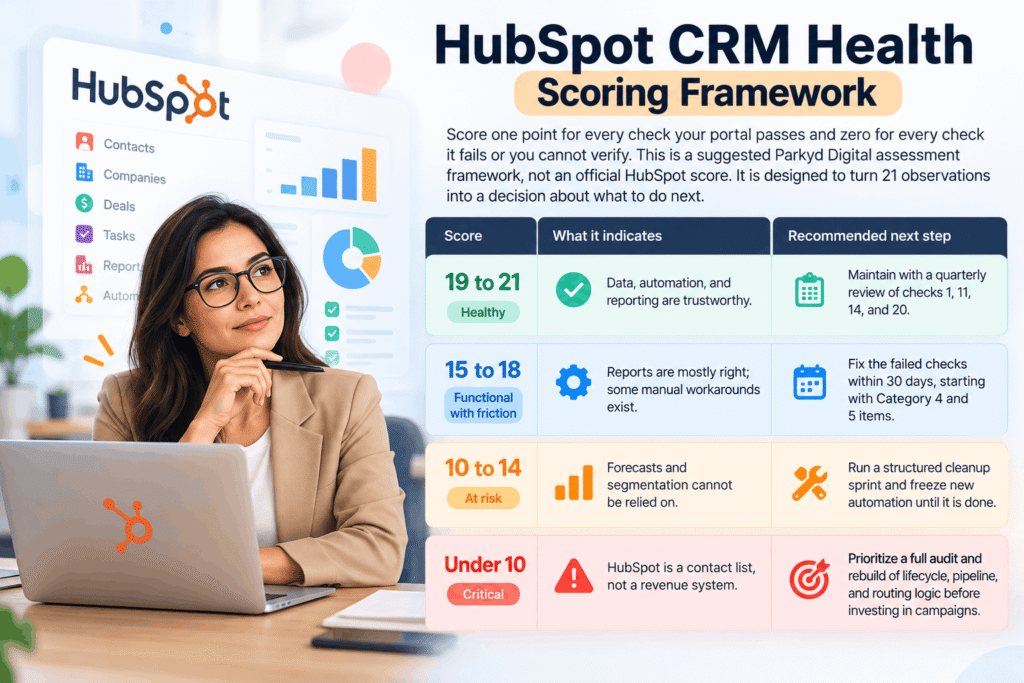
Score one point for every check your portal passes and zero for every check it fails or you cannot verify. This is a suggested Parkyd Digital assessment framework, not an official HubSpot score. It is designed to turn 21 observations into a decision about what to do next.
Score | What it indicates | Recommended next step |
19 to 21 | Healthy. Data, automation, and reporting are trustworthy. | Maintain with a quarterly review of checks 1, 11, 14, and 20. |
15 to 18 | Functional with friction. Reports are mostly right; some manual workarounds exist. | Fix the failed checks within 30 days, starting with Category 4 and 5 items. |
10 to 14 | At risk. Forecasts and segmentation cannot be relied on. | Run a structured cleanup sprint and freeze new automation until it is done. |
Under 10 | Critical. HubSpot is a contact list, not a revenue system. | Prioritize a full audit and rebuild of lifecycle, pipeline, and routing logic before investing in campaigns. |
Treat the bands as guidance. A portal that fails only checks 15 and 19 can still be losing more revenue than one that fails five low-impact checks.
Score your portal now: the interactive HubSpot CRM Health Assessment
Rather than keeping a tally on paper, use the assessment below. It lists all 21 checks in the order you just read them. Mark each one Pass, Fail, or Not Verified. The scoring is identical to the table above: a Pass is one point, and both Fail and Not Verified score zero, because a check you could not verify is a check you cannot rely on.
As you go, the assessment keeps a running total and, when all 21 are marked, shows your score out of 21, the health band it falls into, how many checks failed or could not be verified, and the recommended next action for that band. Nothing is stored or sent anywhere unless you choose to request a professional audit at the end, and you can reset and re-run it as often as you like.
If your result lands in the At Risk or Critical band, or you scored Functional with Friction but checks 11, 15, or 19 were among the failures, that is the point at which a second pair of eyes usually pays for itself. You can request a professional HubSpot CRM audit from Parkyd Digital directly from the result panel; tell us your score and which checks failed and we will come to the first call prepared.
Which HubSpot CRM Problems Should You Fix First?
Fix the problems that touch live leads and open deals before the ones that affect historical reporting. The table ranks each category by business impact, implementation effort, and operational risk if left alone. If you used the assessment above, start with the highest-priority row that contains one of your failed checks.
Priority | Fix | Business impact | Effort | Risk if ignored |
1 | Lead routing to active owners with notification (check 15) | High. Directly affects response time on new leads. | Low | High. Leads go unworked daily. |
2 | Stale deals and required stage properties (check 11) | High. Restores forecast credibility. | Low to medium | High. Quarter-end surprises. |
3 | Duplicate merge and ownership cleanup (checks 1, 3) | High. Fixes double outreach and orphan records. | Medium | Medium. Compounds with every import. |
4 | Lifecycle automation and MQL/SQL definitions (checks 7, 8) | High. Aligns marketing and sales handoff. | Medium | Medium. Funnel reports stay blind. |
5 | Workflow error cleanup and naming (checks 13, 14) | Medium. Prevents silent failures. | Medium | Medium. Failures surface late. |
6 | Picklist and property consolidation (checks 4, 5) | Medium. Improves segmentation accuracy. | Medium to high | Low to medium. |
7 | Integration ownership and sync rules (checks 16 to 18) | Medium to high depending on stack. | High | Medium. Dirty data re-enters after cleanup. |
8 | Funnel, dashboard, and attribution rebuild (checks 19 to 21) | High for decision-making, lower for day-to-day selling. | Medium | Low short term, high long term. |
Can a HubSpot CRM Audit Help Recover Lost Revenue?
Yes, within limits. The audit does not create revenue. It removes the friction between a buyer showing interest and your team acting on it, and it makes the numbers you plan against accurate. The chain is simple: data quality determines whether a lead is routed; routing determines whether it is followed up; follow-up speed affects conversion; pipeline accuracy determines whether leadership resources the right things.
Illustrative scenario (not a client result): a B2B company generates 200 inbound leads a month. Suppose an audit finds that 10 percent of leads are either routed to inactive owners or duplicated and never worked. That is 20 leads a month. If this company’s historical lead-to-opportunity rate is 15 percent, its win rate is 25 percent, and its average deal is $15,000, those 20 unworked leads represent roughly $11,250 of expected revenue per month, or about $135,000 a year, that was never given a chance to close. Change any input and the number changes with it, which is exactly why you should run the calculation with your own figures rather than borrowing anyone else’s.
The second effect is harder to quantify but often larger: once forecasts reconcile with finance, leadership starts using HubSpot to make hiring, budget, and territory decisions again. If you want to run this math with your own inputs, the pipeline calculator linked under check 11 is built for exactly this exercise, and the rest of Parkyd’s free B2B marketing tools cover the adjacent questions: what paid media budget the pipeline needs, what SEO is worth, and whether your LTV to CAC ratio supports the growth plan. The growth readiness diagnostic mentioned earlier shows how CRM health sits alongside those other levers.
When Should You Work With a HubSpot Solutions Partner?
Many teams can complete this audit themselves. If you have a RevOps owner, a Professional-tier subscription, and a portal that has not been through a migration or an acquisition, run the checklist internally and fix items in priority order.
Professional support tends to make sense in four situations: the portal was migrated from Salesforce, Pardot, or another CRM and the structure was never rationalized; more than one team has built automation without a shared convention; integrations with billing, ERP, or a data warehouse are involved; or the assessment returns a score under 15 and nobody internally has the hours to run a cleanup sprint without stalling the sales team.
At Parkyd Digital, audit and discovery is the first step of every HubSpot engagement, followed by cleanup, automation, integration, and reporting work scoped to what the audit found rather than to a fixed package. We work across Marketing, Sales, Service, CMS, and Operations Hubs, so the fixes do not stop at the CRM boundary when the leak turns out to be in a workflow or an integration. Teams in the GTA can also work with our Toronto HubSpot services team. If you would rather talk it through than fill in a form, book a short intro call and bring your assessment score.
Conclusion
A HubSpot CRM audit is not a cleanup project for its own sake. It is the fastest way to find out where interested buyers are being dropped and where your forecast is lying to you. Run the 21 checks, score the portal with the assessment above, and fix routing and pipeline integrity first. Most teams find that the biggest leaks are not exotic; they are a departed rep still in a round-robin, a lifecycle setting that was never switched on, and a dashboard nobody reconciled. Download the checklist PDF if you want the checks beside you while you work, use the scorecard to turn findings into an owned plan, and if the audit raises bigger questions about where growth is actually blocked, that is a growth strategy conversation rather than a CRM one.
Frequently Asked Questions
What is a HubSpot CRM audit?
A HubSpot CRM audit is a structured review of a portal’s data quality, properties, lifecycle stages, deal pipelines, workflows, integrations, and reporting. Its goal is to find configuration and data issues that cause missed follow-ups, poor segmentation, and inaccurate forecasts, then prioritize fixes by business impact.
How often should you audit HubSpot?
Run the full 21-point audit at least twice a year, and after any migration, acquisition, major integration, or change in sales process. Review the high-churn checks, such as duplicates, stale deals, workflow errors, and dashboard reconciliation, quarterly.
How do I check for duplicate contacts in HubSpot?
Go to CRM > Contacts, click Actions, then Manage duplicates. HubSpot shows potential duplicate pairs based on matching property values and lets you merge or reject them individually. This tool requires a Professional or Enterprise subscription; bulk merging and custom duplicate rules require Data Hub Professional or Enterprise.
How can I identify broken HubSpot workflows?
Open Automation > Workflows and review each active workflow’s details page for enrollment history and errors. Workflows that reference deleted properties or lists, or that show zero recent enrollments despite an active trigger, are the usual culprits. Test any workflow with a sample record before turning it back on.
What causes inaccurate HubSpot pipeline reporting?
The most common causes are deals with blank amounts or past-due close dates, stages that reps skip or never use, duplicate pipelines tracking the same process, and dashboards built with different filters. Requiring key properties at stage transitions and publishing one executive dashboard with locked filters fixes most of it.
How is the HubSpot CRM health score calculated?
Each of the 21 checks scores one point if it passes and zero if it fails or cannot be verified, for a maximum of 21. Scores of 19 to 21 indicate a healthy portal, 15 to 18 functional with friction, 10 to 14 at risk, and under 10 critical. The interactive assessment in this article applies exactly this formula; it is a Parkyd Digital framework, not an official HubSpot metric.
Can a HubSpot Solutions Partner audit my CRM?
Yes. A HubSpot Solutions Partner can run the audit, prioritize findings by revenue impact, and carry out the cleanup, automation, integration, and reporting work that follows. Parkyd Digital offers a HubSpot CRM review as the first step of its HubSpot services, and publishes the results of this work in its HubSpot case studies.