 5.0
5.0
 4.9
4.9
 HubSpot
 4.9
4.9

If you are planning a Salesforce to HubSpot migration, the quality of the records you bring across will shape your results far more than any feature comparison. HubSpot’s own guidance says the data you end up with in HubSpot will only be as good as the data you migrate from Salesforce. Features are configured after you arrive. Data is inherited on day one, and every workflow, report and sales sequence you build afterward runs on top of it.
This guide explains what a Salesforce to HubSpot migration actually moves, why dirty Salesforce data causes specific and predictable failures inside HubSpot, which checks to run before you touch the import tool, and where HubSpot’s native tools help or fall short. It is written for RevOps, marketing operations and sales leaders at B2B companies who want the migration to produce a CRM their teams can trust, not just a faster one. It draws on what we see in Parkyd Digital’s HubSpot migration services work with B2B companies across Canada and the USA.
Short answer: Clean your Salesforce data before you migrate, not after. HubSpot matches records by email address, routes everything through property mappings and picklist values, and triggers automation on the data it receives. Duplicates, inconsistent picklists, orphaned owners and missing required fields do not get fixed by the migration. They get copied, then multiplied by automation.
What does a Salesforce to HubSpot migration actually move?
A Salesforce to HubSpot migration transfers your CRM records and their relationships from Salesforce objects into HubSpot objects: leads and contacts become HubSpot contacts, accounts become companies, opportunities become deals, cases become tickets, and tasks, activities and campaign membership move into HubSpot’s activity timeline and marketing tools. A migration is different from a one-time CSV import because it also has to preserve associations, ownership, lifecycle logic and historical engagement.
HubSpot offers two native paths. The first is the HubSpot-Salesforce integration, which you connect and then use to import Salesforce records directly into HubSpot. The second is a file-based import using CSV or Excel exports from Salesforce, governed by HubSpot’s import file requirements. Most partner-led migrations use a combination: the integration for standard objects and activity history, and file imports for data that needs transformation first.
Three mechanics in the native path matter more than any feature:
- Salesforce API calls are the bottleneck. The integration runs on a daily Salesforce API call allowance, and HubSpot notes that large imports may take several hours to optimize the use of those calls. When the limit is reached the sync pauses until the next 24-hour window. Every duplicate and every out-of-scope record you bring across consumes calls you will want for live syncing later.
- Matching is by email. HubSpot’s Knowledge Base states that the integration matches Salesforce leads and contacts to HubSpot contacts using email addresses, then syncs property values based on your field mappings. A Salesforce record with no email, a shared inbox email or a typo in the email will not match the way you expect.
- The initial import brings over only the email. When you import leads or contacts through the integration, only the email address is synced at the time of import. The remaining mapped fields arrive when a sync is triggered afterward, which means your field mappings and inclusion rules have to be correct before the import, not after.
Technical note on API throttling: Before you schedule the import, check your Salesforce edition’s daily API allowance and how much of it other integrations already consume. In HubSpot, the Sync Health tab in your Salesforce integration settings shows API calls used in the last 24 hours and lets you set how many calls HubSpot may use. Cleaning and scoping the data first is the single biggest lever for keeping the import inside that allowance.
Why does data quality matter more than features in a Salesforce to HubSpot migration?
Data quality matters more than features because features are reversible and data problems are not. You can turn a HubSpot workflow off, rebuild a dashboard or change a pipeline stage in an afternoon. You cannot easily un-merge 4,000 contacts that were matched on the wrong email, recover lifecycle stages that were overwritten on first sync, or re-attribute six months of marketing emails that fired to the wrong segment because the lead source values did not map.
Features are configured. Data is inherited.
Every HubSpot feature a buyer gets excited about during a demo, such as sequences, lead scoring, lifecycle automation, attribution reporting and AI-assisted forecasting, takes its inputs from contact, company and deal properties. If those properties arrive inconsistent, every feature produces inconsistent output. The migration decides the quality of the inputs. The feature list decides nothing until the inputs are right.
HubSpot’s sync errors are mostly data errors
HubSpot documents its Salesforce sync error types in a dedicated Knowledge Base article. The categories are telling: associations errors (a contact waiting for its account to sync), duplicates errors, permissions errors, picklist errors, property mapping errors and property value errors. Apart from permissions, every one of those categories is a data quality problem that existed in Salesforce before the migration began. The integration does not create them. It surfaces them.
Automation amplifies whatever it receives
HubSpot’s sync triggers include marketing emails sent or opened, meetings booked, calls logged, notes created and tasks created, provided activity sync is turned on. In practice this means that the moment your team starts working in HubSpot, every touch pushes data through the mappings you set. A bad picklist mapping is not a one-time error. It repeats on every sync event until someone notices the error count climbing in Sync Health.
Reporting is only as trustworthy as the records behind it
Gartner estimates that poor data quality costs organizations an average of US$12.9 million per year (Gartner, Data Quality). That figure comes from a 2020 survey of data quality software customers, so treat it as directional rather than a benchmark for your company. The more useful point is operational: if your post-migration pipeline report shows 40 percent more open deals than Salesforce did, nobody will trust HubSpot, and adoption will stall regardless of how good the reporting tools are.
What does dirty Salesforce data break inside HubSpot?
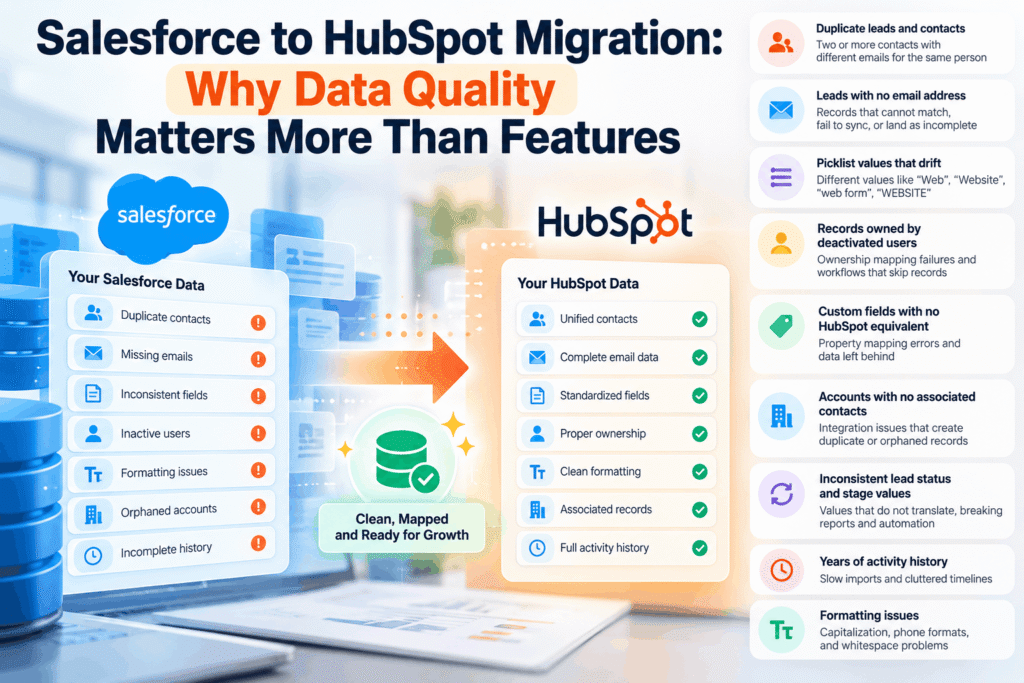
Dirty Salesforce data produces specific, repeatable failures in HubSpot. The table below maps the most common source problems to the symptom you will see after migration and when the fix should happen. In almost every row, the cheapest time to fix the problem is before the first import.
Problem in Salesforce | What it causes in HubSpot | Fix before or after migration? |
Duplicate leads and contacts with different emails for the same person | Two or more HubSpot contacts, split engagement history, double-counted MQLs, sequences enrolling the same buyer twice | Before. HubSpot matches on email, so duplicates with different emails will not be merged automatically. |
Leads with no email address | Records that cannot match, that fail to sync, or that land as incomplete contacts with no timeline | Before. Decide whether to enrich, archive or exclude them from scope. |
Picklist values that drift (e.g. “Web”, “Website”, “web form”, “WEBSITE”) | Picklist sync errors, segmentation lists that miss records, lead source attribution reports with four versions of the same source | Before. Standardize values, then map each one to a single HubSpot property option. |
Records owned by deactivated users | Ownership mapping failures, rotation workflows skipping records, sales leaders unable to see who owns what | Before. Reassign ownership in Salesforce or build the owner mapping table first. |
Custom fields with no HubSpot equivalent | Property mapping errors; data silently left behind if the custom property is not created first | Before. Create custom properties in HubSpot and map them explicitly. |
Accounts with no associated contacts, or contacts with no account | Association errors; the integration deduplicates companies using associated contacts, not domain, so orphaned accounts become duplicate companies | Before. Repair the account-contact relationships you intend to keep. |
Inconsistent Lead Status and Stage values | Lifecycle stages and deal stages that do not translate, breaking pipeline reports and lifecycle automation | Before. Build a translation table from Salesforce values to HubSpot lifecycle stage and deal stage. |
Years of activity history, including irrelevant tasks | Slow imports, API call exhaustion, cluttered timelines that bury the useful context | Before. Set a scope rule (for example, last 24 months plus any activity on open deals). |
Formatting issues (capitalization, phone formats, whitespace) | Formatting issues flagged in HubSpot’s Data Quality tool, inconsistent personalization tokens in email | After is acceptable. HubSpot’s Data Quality tools can fix many of these post-import. |
Which data quality checks should you run before a Salesforce to HubSpot migration?
Run eight checks before you connect the integration or build an import file: scope and record counts, duplicates, email validity, picklist standardization, ownership, required fields and validation rules, lifecycle and stage translation, and activity history scope. Each one takes hours when done in Salesforce and weeks when done in HubSpot after go-live.
1. Define scope and reconcile record counts
Pull record counts by object from Salesforce: leads, contacts, accounts, opportunities, cases, tasks, events and campaign members. Decide what is in scope. Closed-lost opportunities from 2017 and leads that never opened an email probably are not. HubSpot’s import screen shows you the number of records that will be imported for each object, so you should know your target count before you see that screen. After the migration, the reconciliation is simple: counts in Salesforce (in scope) must equal counts in HubSpot.
2. Find and merge duplicates in Salesforce first
Because the integration matches on email, a person who exists as both a lead and a contact with the same email will be handled, but the same person under two different emails will become two HubSpot contacts. Run duplicate reports in Salesforce on name plus company and on phone number, not only email. Merge what you can in Salesforce. HubSpot’s manage duplicates tool can catch what remains, but bulk merging and the expanded duplicate list require a Data Hub Professional or Enterprise subscription, and the integration behaves differently once it is active. Doing this in the source system is cheaper and safer. If the volume is beyond what your team can handle, this is the point at which companies typically bring in HubSpot CRM cleanup and deduplication support.
3. Validate email addresses
Export every email you intend to migrate and run it through a verification service. Remove hard bounces, catch role-based inboxes (info@, sales@) that will cause false matches, and flag records with no email at all. Any record you keep without an email needs a plan: enrich it, keep it for sales context only, or leave it behind. This step also protects your HubSpot email sending reputation, which starts fresh when you migrate.
4. Standardize picklist and dropdown values
List every picklist field you will map: Lead Source, Industry, Lead Status, Opportunity Stage, Type, Rating and any custom picklists. For each one, collapse variants into a single canonical set, then decide which HubSpot property it maps to and whether that property’s options already exist. HubSpot’s sync errors documentation specifically lists picklist errors and property value errors as categories, and notes that import values must match either the label or the internal value of the property’s defined options. Build this mapping as a spreadsheet and get sales and marketing to sign it off.
5. Reassign ownership before you map users
Pull a list of record owners in Salesforce and compare it to the list of users who will exist in HubSpot. Records owned by deactivated users, queues or generic admin accounts need a new owner or an explicit mapping rule. Rotation and territory workflows in HubSpot depend on the owner property being populated with a real user, and unowned records fall through every routing rule you build.
6. Audit required fields and validation rules
Salesforce validation rules are often the reason records fail to sync back once the integration is on, and required fields that are empty in the source will fail property value checks in HubSpot. Document every validation rule on the objects in scope, then decide whether the equivalent logic belongs in HubSpot (as a required property, a workflow or a form rule) or should be retired. This audit is also where you discover the undocumented business logic your sales team has been relying on for years.
7. Translate lifecycle stages and deal stages
HubSpot’s lifecycle stage (Subscriber through Customer and Evangelist) and its deal pipelines are not one-to-one with Salesforce Lead Status and Opportunity Stage. Decide the translation explicitly: which Lead Status values become MQL, which become SQL, which Opportunity Stages map to which HubSpot deal stages with which probability. Write it down, because HubSpot workflows that set lifecycle stage can only move records forward by default, and a wrong initial value is hard to correct at scale.
8. Set a scope for activity history
Decide how far back engagement history should go and which activity types matter. Tasks and events older than the sales cycle rarely change a conversation, but they do consume API calls and clutter the timeline. A common rule is to migrate all activities on open deals and current customers, plus the last 24 months for everyone else. Confirm the rule with sales leadership so nobody is surprised when a 2019 call log is not in HubSpot.
How do HubSpot’s native tools help, and where do they stop?
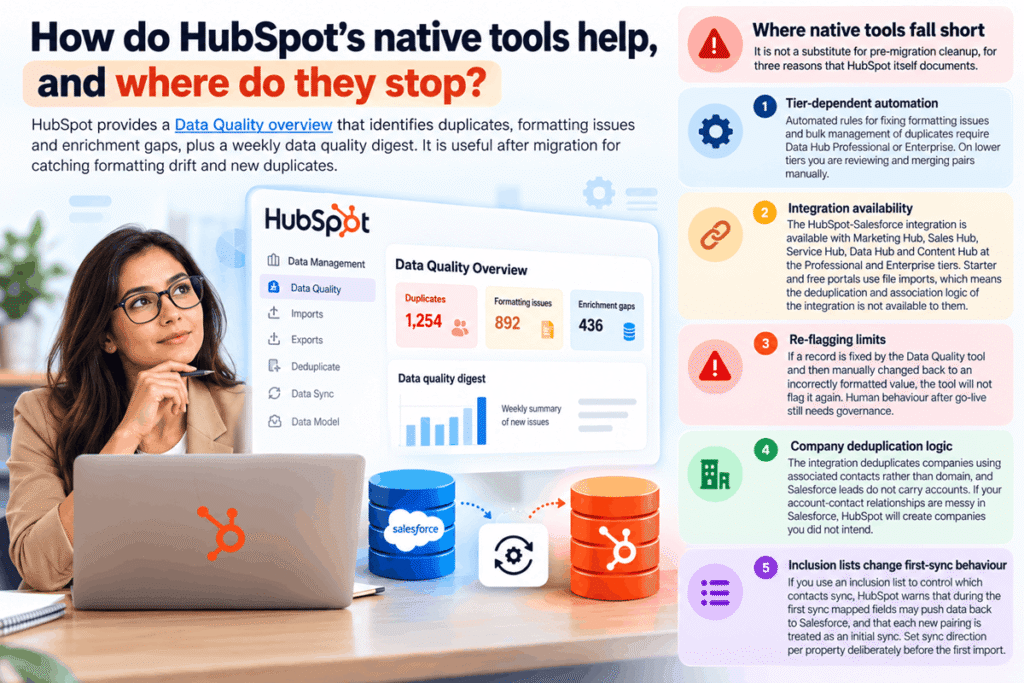
HubSpot provides a Data Quality overview that identifies duplicates, formatting issues and enrichment gaps, plus a weekly data quality digest. It is useful after migration for catching formatting drift and new duplicates. It is not a substitute for pre-migration cleanup, for three reasons that HubSpot itself documents.
- Tier-dependent automation. Automated rules for fixing formatting issues and bulk management of duplicates require Data Hub Professional or Enterprise. On lower tiers you are reviewing and merging pairs manually.
- Integration availability. The HubSpot-Salesforce integration itself is available with Marketing Hub, Sales Hub, Service Hub, Data Hub and Content Hub at the Professional and Enterprise tiers. Starter and free portals use file imports, which means the deduplication and association logic of the integration is not available to them.
- Re-flagging limits. HubSpot notes that if a record is fixed by the Data Quality tool and then manually changed back to an incorrectly formatted value, the tool will not flag it again. Human behaviour after go-live still needs governance.
- Company deduplication logic. The integration deduplicates companies using associated contacts rather than domain, and Salesforce leads do not carry accounts. If your account-contact relationships are messy in Salesforce, HubSpot will create companies you did not intend.
- Inclusion lists change first-sync behaviour. If you use an inclusion list to control which contacts sync, HubSpot warns that during the first sync mapped fields may push data back to Salesforce, and that each new HubSpot-Salesforce pairing is treated as an initial sync. Set sync direction per property deliberately before the first import.
Which migration approach should you use?
The right approach depends on data volume, how much transformation the data needs and whether you intend to keep Salesforce running in parallel. The native integration is fastest for standard objects when the data is already clean. File imports give you full control over transformation. A partner-led migration combines both and adds the pre-migration cleanup that neither native path performs for you.
Approach | Best for | Data quality handling | Main limitation |
Native HubSpot-Salesforce integration import | Standard objects, activity history, teams that will run both systems during a transition | Email-based matching; errors surfaced in Sync Health; no transformation of values | Consumes Salesforce API calls; picklist and mapping errors repeat on every sync; Professional or Enterprise tier required |
CSV / Excel export and HubSpot file import | Smaller databases, custom objects, data that needs reshaping before it lands | Full control to clean, dedupe and standardize in a spreadsheet or script first | Associations and activity timelines are harder to preserve; row and daily import limits apply by tier |
Partner-led migration (cleanup + hybrid import) | Databases over roughly 20,000 records, multi-object scope, teams without a dedicated RevOps admin | Pre-migration audit, dedupe, mapping tables and post-migration reconciliation are part of the project | Requires budget and a few weeks of lead time; quality depends heavily on the partner’s process |
What does a data-first Salesforce to HubSpot migration process look like?
A data-first migration runs in five phases: audit, cleanup, mapping, staged import and reconciliation. The audit and cleanup phases usually take longer than the import itself, which is the opposite of how most teams plan it.
- Audit (week 1): record counts by object, duplicate rate, email validity rate, picklist inventory, owner inventory, validation rules, integrations that write to Salesforce.
- Cleanup (weeks 1 to 2): merge duplicates, standardize picklists, reassign owners, archive out-of-scope records, enrich or exclude records with no email.
- Mapping (week 2): field-to-property mapping sheet, custom property creation in HubSpot, lifecycle and stage translation table, sync direction per property.
- Staged import (weeks 3 to 4): import a representative sample (for example, one sales team or one region), validate associations and timelines, resolve sync errors, then import the remainder.
- Reconciliation and cutover (week 4 onward): compare counts and key field values between systems, confirm reports match, train users, then switch Salesforce to read-only.
Parkyd Digital’s migration page cites two to six weeks from planning to go-live for most projects, with the variance driven almost entirely by how much cleanup the source data needs. Once the data is in, HubSpot onboarding and implementation picks up: pipelines, lifecycle definitions, workflows, dashboards and training are configured on top of records you can trust.
Who should run the pre-migration cleanup?
The cleanup should be owned by whoever will be accountable for HubSpot data after go-live, usually a RevOps or marketing operations lead, with sales leadership signing off on scope, ownership and stage translation. Many teams do the audit internally and bring in a partner for the dedupe, mapping and staged import because those steps are repetitive, high-volume and unforgiving of mistakes. If you want that handled end to end, Parkyd Digital’s HubSpot integrations and migrations service covers the pre-migration audit, data mapping, migration execution, workflow rebuild and post-migration QA as one project.
Limitations and platform-dependent behaviours to know
- The HubSpot-Salesforce integration syncs contacts, companies, deals and tickets, plus activities and custom objects from Salesforce to HubSpot. Flexible associations and some Salesforce campaign structures do not have a native sync equivalent, so plan those separately.
- Updates to a Salesforce formula field do not trigger a sync. If a formula field is driving a value you need in HubSpot, migrate the calculated result or rebuild the calculation in HubSpot.
- Import limits are tier dependent. HubSpot documents a 500,000 row per day limit for free tools and up to 10,000,000 rows per day with a 1,048,576 row per file cap on paid tiers, with higher limits through the imports API.
- Email opt-out status syncs between the platforms, but your HubSpot sending reputation does not inherit Salesforce or Pardot history. Warm up sending domains after migration.
- Data residency and privacy obligations (PIPEDA in Canada, state privacy laws in the USA) apply to the exported files you create during cleanup. Store them in an access-controlled location and delete them after reconciliation.
- Industry statistics about contact data decay (commonly cited at around 2 percent per month) are widely repeated by data vendors without an accessible primary study. Use your own bounce and re-verification rates rather than external averages when sizing the cleanup.
Next step: get your Salesforce data assessed before you migrate
Parkyd Digital is a HubSpot Solutions Partner based in Kitchener-Waterloo, Ontario, serving B2B companies across Canada and the USA. We run the pre-migration audit, clean and deduplicate your Salesforce data, build the mapping and stage translation tables, execute the migration, rebuild your workflows and reconcile the result against the source system.
If you are weighing a move from Salesforce to HubSpot, start with a 19-minute intro call. We will look at your Salesforce record counts, duplicate rate and custom field inventory, and tell you what the cleanup actually involves before you commit to a timeline.
Frequently asked questions
How long does a Salesforce to HubSpot migration take?
Most partner-led migrations take two to six weeks from planning to go-live. Data cleanup and mapping typically account for more than half of that time. Very large or heavily customized Salesforce orgs can take longer, mainly because of API call limits and the volume of records that need manual review.
Can I migrate from Salesforce to HubSpot without losing data?
Yes, if the scope is defined and the data is cleaned first. Data loss in migrations usually comes from unmapped custom fields, records with no email that fail to match, and activity history that is excluded by default. All three are preventable with a mapping sheet and a reconciliation step.
Does HubSpot automatically remove duplicates during a Salesforce import?
Partially. The integration deduplicates leads and contacts against existing HubSpot contacts by email address. It does not merge two records with different emails for the same person, and it deduplicates companies using associated contacts rather than domain. Duplicates that do not share an email should be merged in Salesforce before import.
Should I clean data in Salesforce or in HubSpot?
Clean in Salesforce before migrating. Fixes in the source system are cheaper, do not consume API calls, and prevent automation from firing on bad data. HubSpot’s Data Quality tools are best used afterward for ongoing formatting and duplicate monitoring.
Which HubSpot tier do I need for the Salesforce integration?
The HubSpot-Salesforce integration is available with Marketing Hub, Sales Hub, Service Hub, Data Hub and Content Hub at the Professional and Enterprise levels. Starter and free portals can still migrate using file imports but without the integration’s matching and association logic.
What is the biggest mistake companies make when migrating from Salesforce to HubSpot?
Treating the migration as a feature project instead of a data project. Teams spend weeks evaluating sequences, scoring and reporting, then import a database with duplicates, inconsistent picklists and orphaned owners. Every one of those features then produces unreliable output and adoption suffers.